

What you can use it for
- Browse a site you name. Give Mira a specific website you want visited and it browses it for you, then brings back what it found.
- Reach candidates behind a sign-in. Open a recruiting site you’re logged into and Mira reads profiles, then brings qualified candidates back for matching.
- Research companies and teams. Ask about a company’s leadership, recent funding, or who’s on a specific team, and Mira gathers it from the live web.
- Reach other SaaS tools you’re signed into. Mira works through your own browser session, so it can reach your ATS, CRM, or other accounts you’re already logged into.
Install and connect
- Find Mira Browser Extension on the Chrome Web Store and click Add to Chrome. You can also install it from Settings, then Browser Extension, with the Install extension button (desktop only).
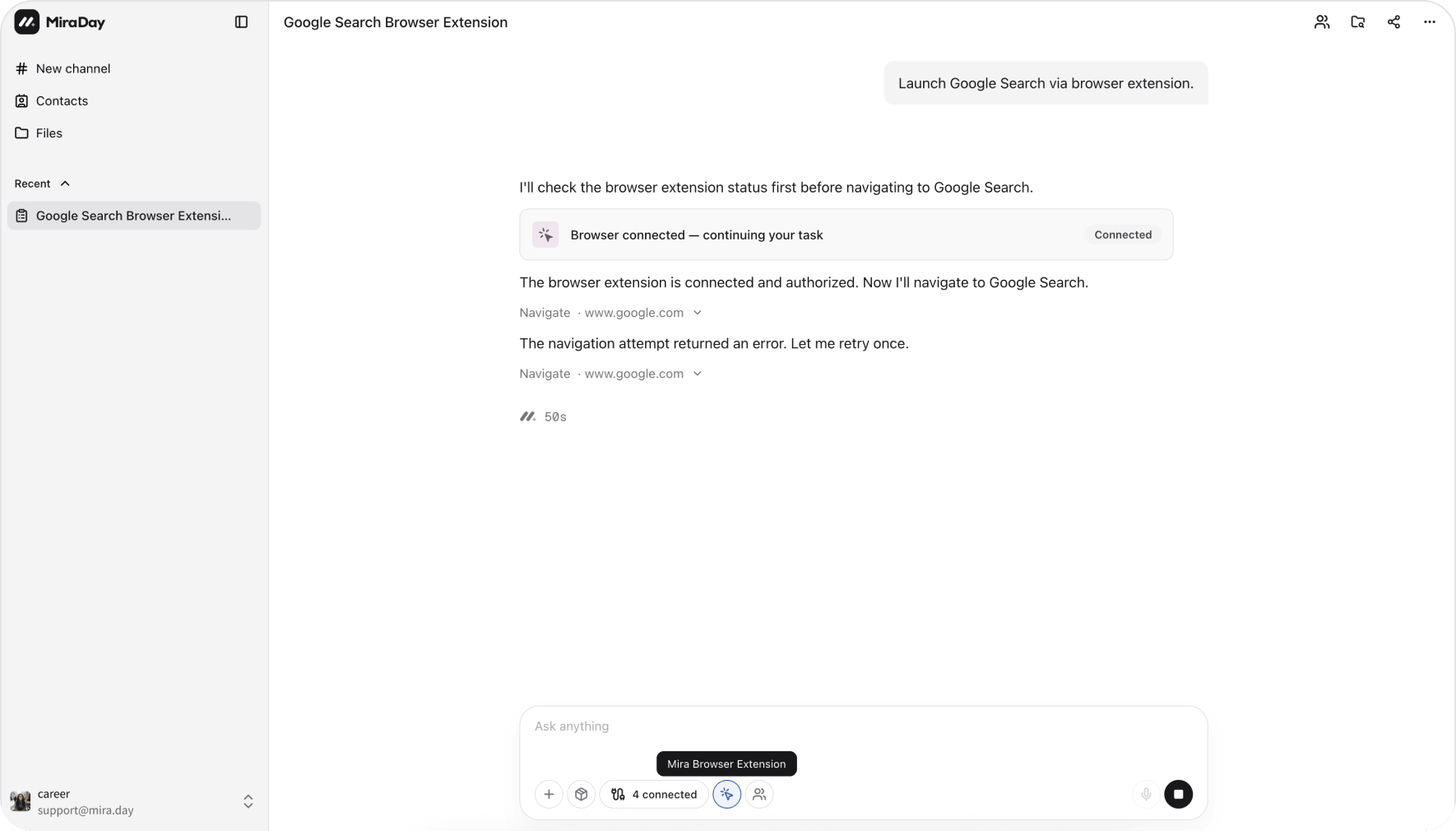
- A small extension icon appears in the channel input (desktop only; it doesn’t show on mobile). While Mira is detecting the extension, the button is disabled. If the extension isn’t installed, clicking it opens install steps; if it’s installed but not connected, clicking it offers Connect, Authorize, Update, or Upgrade, depending on what’s needed; once connected, it works as a toggle (see below).
- The first time Mira needs your browser, it shows a Mira requests control of your browser card. Mira uses sites you’re logged into and operates in the channel’s dedicated tab by default; you can also explicitly ask it to continue in an existing tab (see below). All actions are logged and viewable, and sensitive actions like payment or deletion ask you first. Click Authorize; it’s remembered after that, so there’s nothing to set up per channel.
- Go to
chrome://extensions/, turn on Developer mode in the top right, then click Update in the top left. - If it still won’t update, find the Mira extension and click Remove, then use the Open store button on the card and click Add to Chrome to reinstall.
Using it in a channel
Works with your team
Teammates in an Agent Team can use the extension to browse too. You grant browser access once, up front, and the teammates Mira spins up for the channel can use the extension the same way, in your browser.Platform compliance
Many recruiting platforms have terms of service that restrict automated access. The Extension is built to work within reasonable usage patterns, but responsibility for complying with third-party platform terms rests with you. We recommend using it for targeted, specific searches rather than bulk scraping, and keeping your own platform accounts in good standing.Privacy and security
- Mira uses your own browser and logins in the channel’s dedicated tab by default. If you explicitly choose an existing page, that tab becomes the task’s working tab; unrelated tabs stay outside the task.
- Mira doesn’t store your passwords or cookies; it works through the session you’re already signed into.
- Sensitive actions ask for your confirmation first, and every action is logged and viewable.
- The Extension works on Chrome only.
- All data handling follows MiraDay’s Privacy Policy.
What’s next
- Agent Team: the teammates that share the browser during a channel.
- Connectors: connect Gmail or Outlook to work with email in a channel.
- How MiraDay Searches: the built-in sources Mira searches before it reaches for the browser.