

Open Files
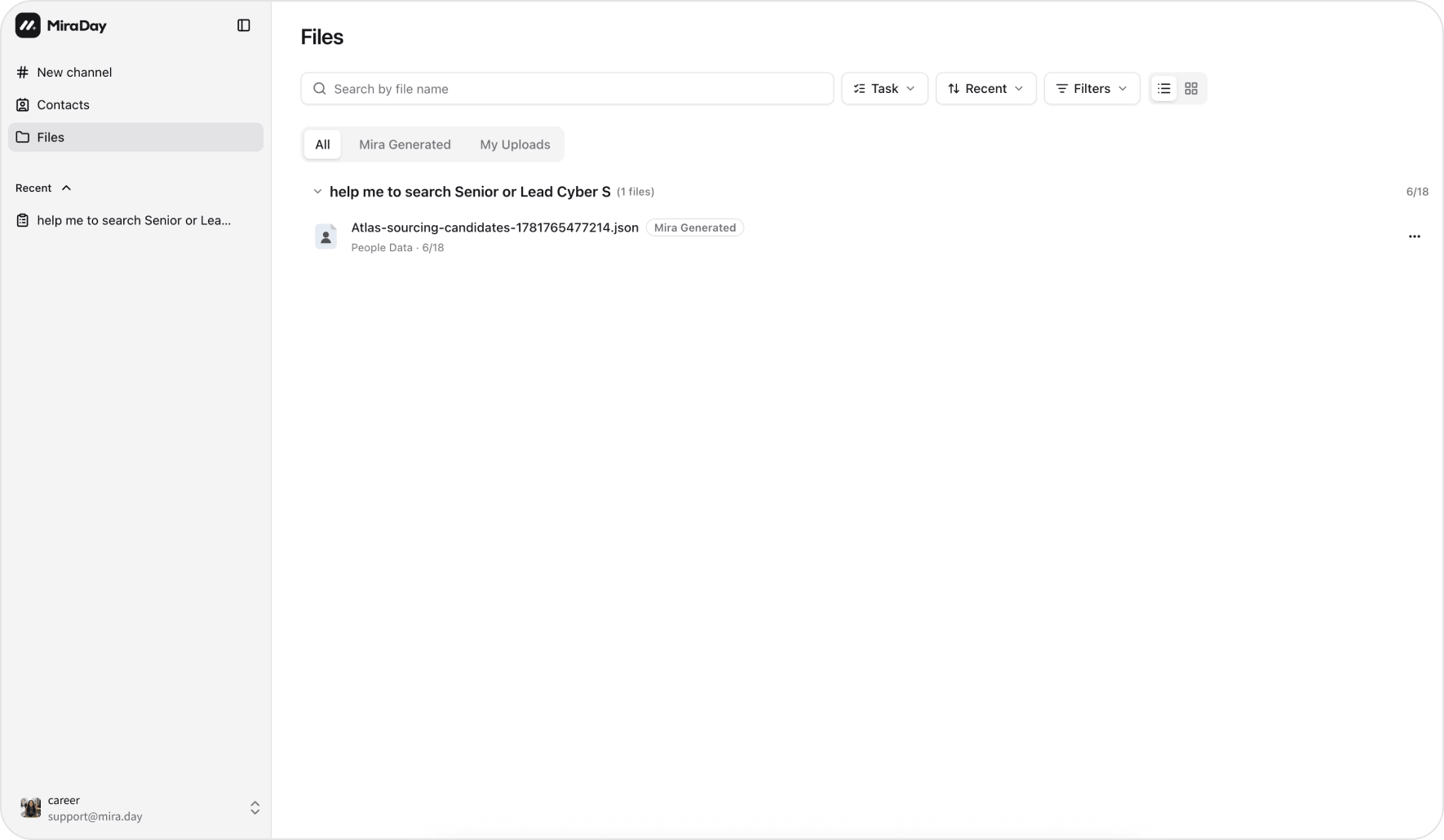
Where files come from
Use the tabs at the top to filter by source:
Files shared with you carry a Shared label on the file row.
Find a file
When the list grows, narrow it down:- Search by file name.
- Filter by type, channel, or date created.
- Group by channel or by file type, or leave it ungrouped.
- Sort by most recent, oldest, or file size.
What you can do with a file
Click a file to preview it; Reveal in channel and Download are in the row’s ⋯ menu.- Preview a supported file inline without leaving the page.
- Reveal in channel: jump to the channel the file belongs to, in context.
- Download a single file, or select several and Batch download them together.
What’s next
- Export & Share: the candidate data file Mira generates from a search.
- Voice & Audio Input: upload a recording and Mira works out the requirements from it.
- Connectors: connect Gmail or Outlook to work with email in a channel.