

1
Describe the role
After signing in, you’ll see the New channel screen with a text input and suggested scenarios.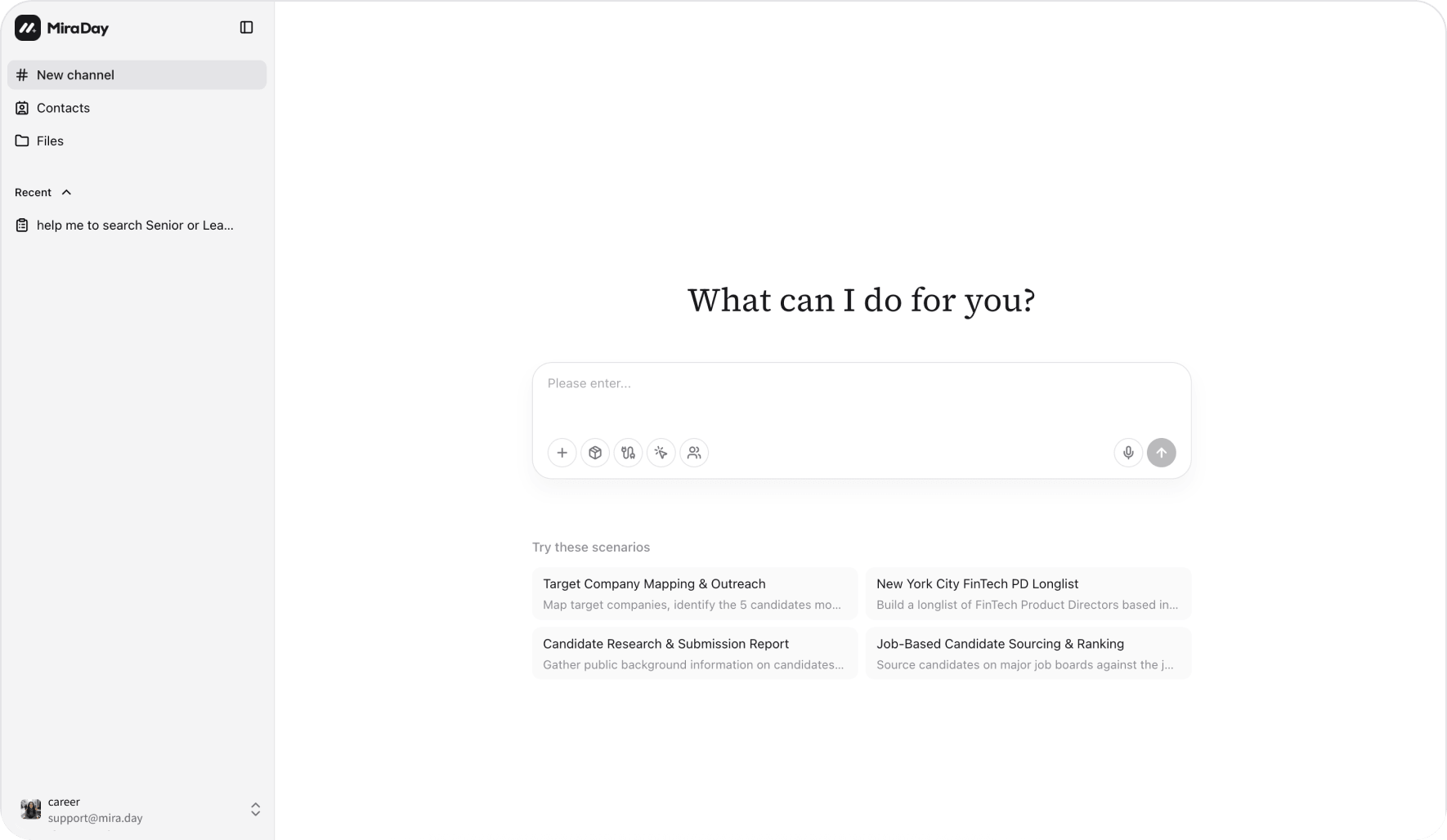
-
Type your own description: Paste or upload a job description, or describe the role in your own words. Be as specific as you like. For example:
I’m looking for a senior full-stack engineer with React and Node.js experience, preferably from a high-growth startup. Location: Berlin or remote.
- Pick a suggested scenario: Click one of the example prompts below the input to get started quickly.
A formal job description is not necessary. You can describe the role the way you’d brief a colleague; Mira understands natural language, including implicit criteria like “high-growth company background” or “has built a team from scratch.”
2
Confirm the details (only if asked)
Mira analyzes your input and decides whether it has enough to run the search. If your description is already specific enough, Mira moves ahead without one. If key details are missing or ambiguous, Mira shows a short clarification form. Its questions are tailored to your task and focus on the choices that shape the search, such as:
- Key responsibilities to focus on: which parts of the role matter most for finding the right people.
- Scope or location coverage: the regions or work locations the search should cover.
- Company-type preferences: startups, high-growth companies, or a specific kind of organization.
The form only shows up when it would improve results. A thorough description up front means fewer interruptions later.
3
Confirm the Ideal Candidate Profile
Mira turns your brief into an Ideal Candidate Profile: must-haves, nice-to-haves, and things to avoid. Check it, click Edit to change any row, then click Search. Mira starts sourcing only after you confirm.
4
Review your candidates
Mira searches across its talent sources and returns your candidate pool.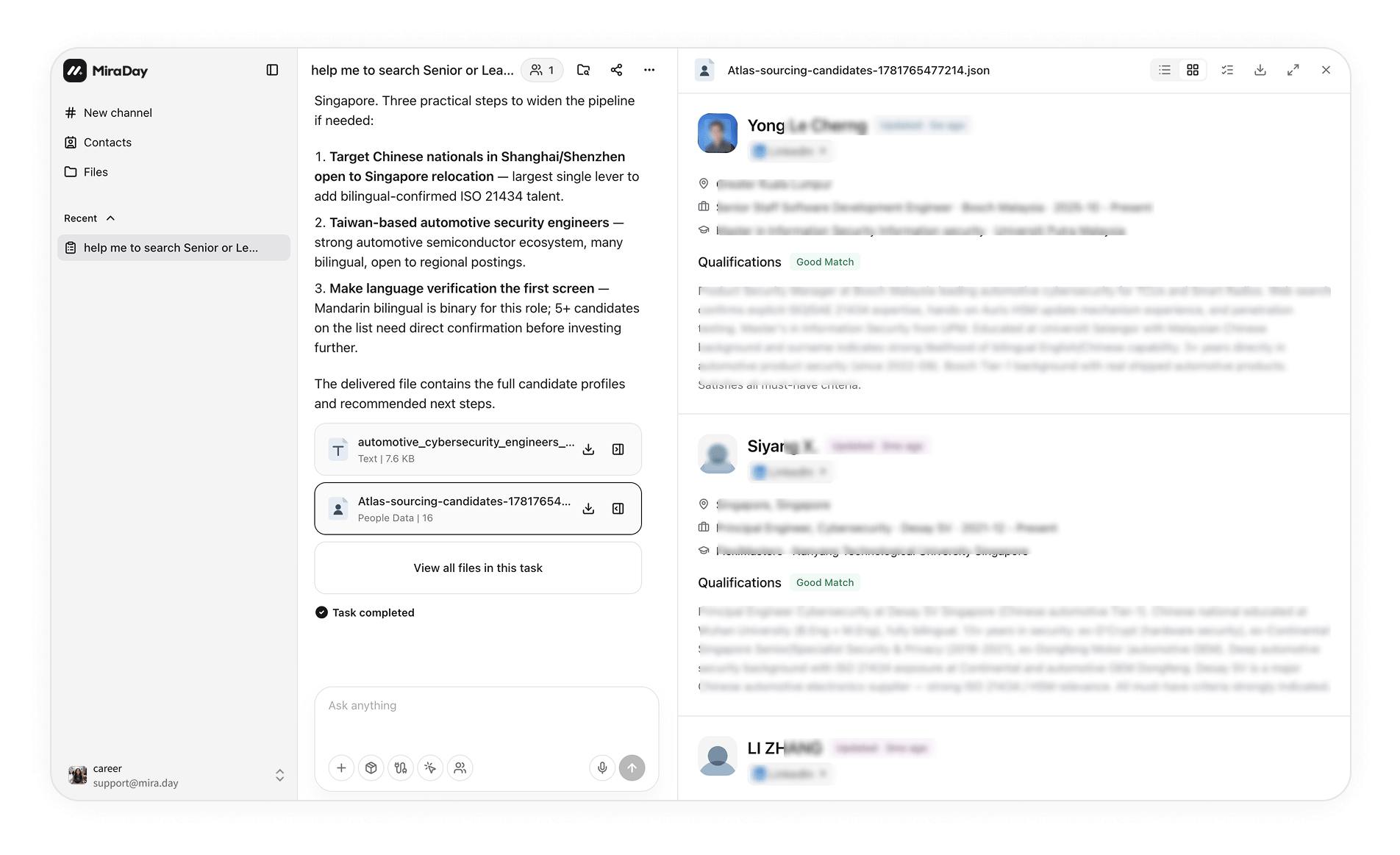
-
Candidate cards on the right panel, each showing:
- Name, with links to their profiles on the platforms the search drew on, such as LinkedIn, GitHub, or Hugging Face.
- Current title, company, and time in role.
- Location and highest level of education.
- A Qualifications section that assesses how well the candidate fits your must-haves, with an overall fit label: Good Match (green), Partial Match (yellow), or Low Match (grey).
- Email and phone, hidden by default. Click Get email or Get phone to reveal them on demand, which consumes credits.
- A downloadable data file with every candidate’s details. See Export & Share to reveal contacts in bulk, download the file, and share it.
5
Refine or continue
After reviewing the pool, keep talking to Mira in the same channel: ask for more candidates or change the criteria (“Include candidates in Amsterdam too”). You can also expand the Ideal Candidate Profile bar at the top of the results panel, edit it, and click Search. For a different role, click New channel in the sidebar. See Refining Your Search for more.Each channel is saved in the sidebar, so you can come back to any search anytime. A marker next to each channel shows where it stands: a pulsing dot while it’s running, a hand icon when it’s waiting for your confirmation, and a blue dot when it has finished and you haven’t opened it yet.
What’s next
- Review Your Candidates: How to read the pool Mira returns, the fit label, and the Qualifications.
- How MiraDay Searches: How to describe a role and how Mira searches across multiple data sources.
- How MiraDay Matches Candidates: How Mira Reasoning Embedding interprets your requirements.