

Refine by conversation
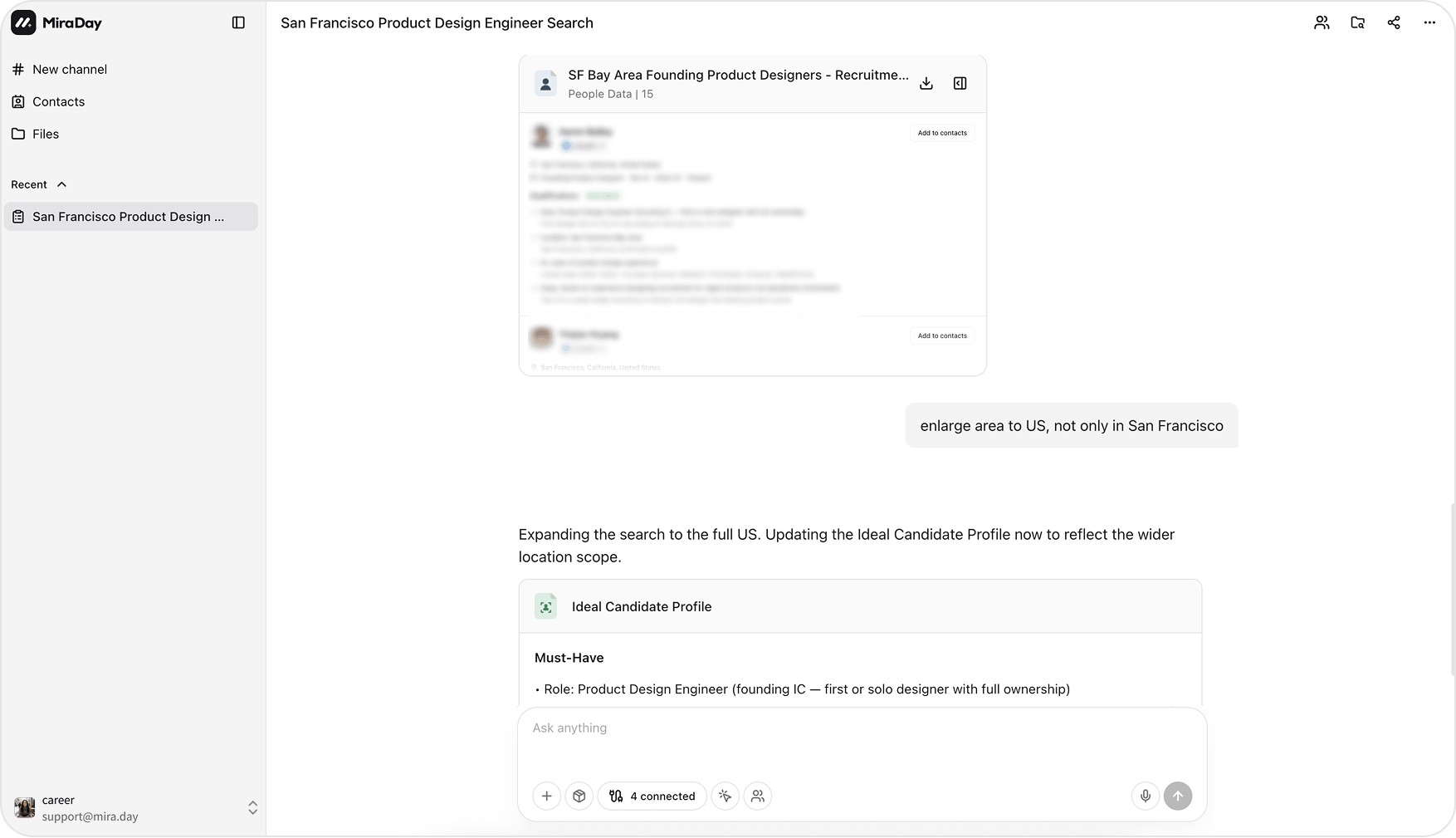
You don’t start over. Mira keeps the context of the search and applies your change on top of it.
To change specific criteria yourself, expand the Ideal Candidate Profile bar at the top of the results panel, edit the rows, and click Search. Mira starts a new round with the updated profile. If a search is still running, you can Wait for it or Start new search. If the profile gets updated in the conversation before you send your edits, those unsent edits are discarded. See Must-haves & Dealbreakers.
Choosing how many
Mira returns 40 candidates by default. To change that, say a number when you describe the role (“find me 50 ML engineers”), or ask for more at any point in the conversation.Start a new search
For a different role, click New channel in the sidebar. Each conversation is saved there as a channel, so you can jump back to any earlier search and pick up where you left off.Export and share
Once the pool looks right, click Download profiles at the top of the results panel for an Excel (.xlsx) file, or tick candidates and click Bulk download to export just those. For what the file contains and how to share it, see Export & Share.What’s next
- Inside a Candidate Profile: how to read the candidates you get back.
- Export & Share: reveal contacts and export the pool.
- Agent Team: put a team on a hard or long-running search.