

Connect your email
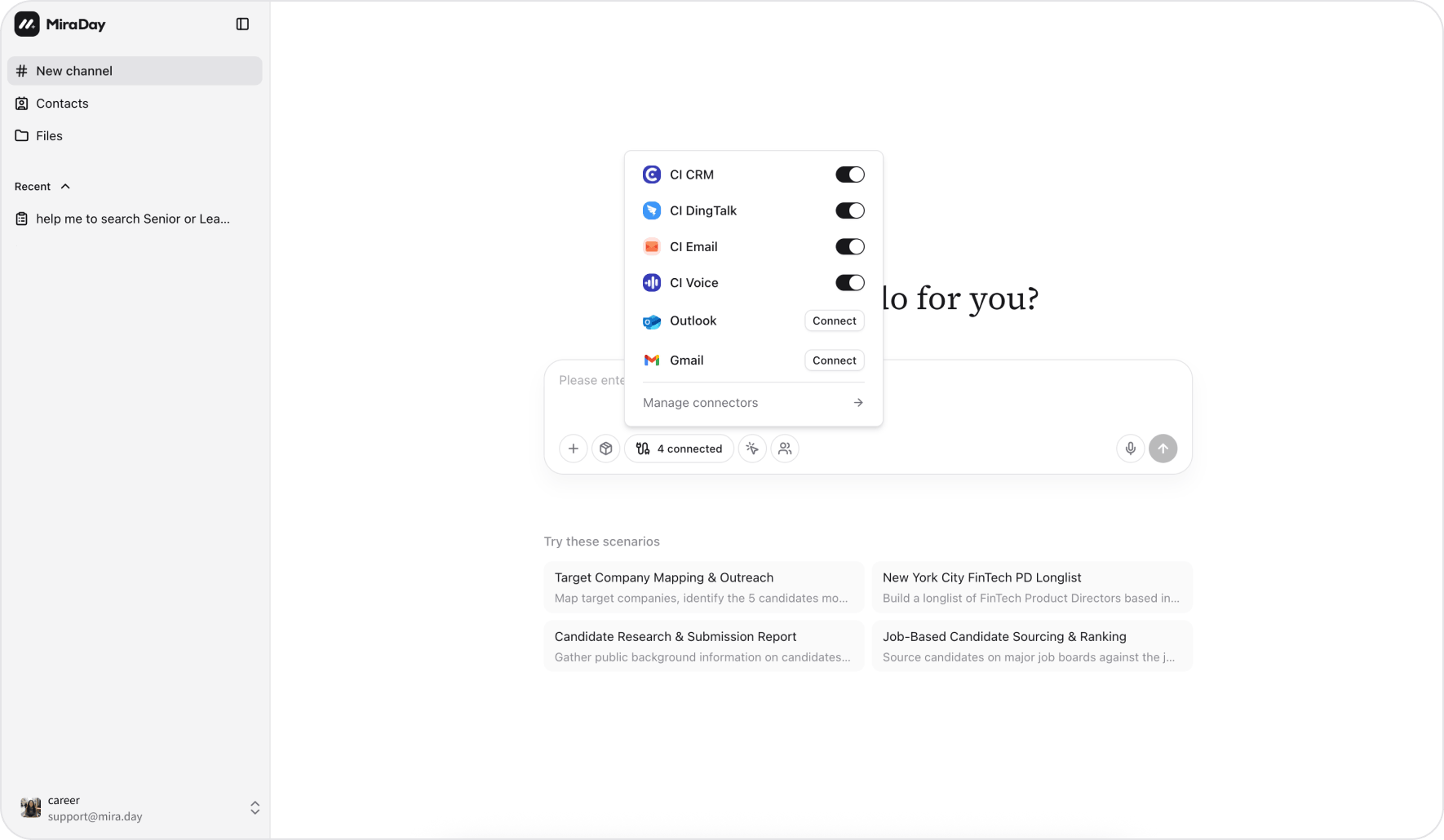
- Open Connectors from Settings, or from the connectors menu in the channel input.
- Find Gmail or Outlook and click Connect.
- Authorize Mira when prompted. You’re sent to sign in and grant access, then brought back.
- Once connected, your mailbox is ready to use in any channel.
What Mira can do with your email
Once your mailbox is connected, ask Mira to work with email right inside a channel:- Draft. Mira writes the email in the Email Canvas, with To, Cc, Bcc, Subject, and Body all editable inline, and you can add attachments. Review it and make any changes before it goes anywhere.
- Send. When the draft is ready, click Send. Mira asks you to confirm once more before anything leaves your mailbox, so nothing is sent until you approve it.
- Forward. Forward an email from within a channel. Its original attachments come along; forwarded emails can’t take new attachments.
- Read and summarize. Point Mira at your inbox to pull in a long thread and get the gist, or catch up on what’s come in, without leaving the channel.
Privacy and security
- Connectors use your own authorization. Mira uses a connected account only to do what you ask inside a channel.
- Nothing is sent without your confirmation, and you can disconnect a connector at any time from the Connectors page; its access is revoked right away.
- All data handling follows MiraDay’s Privacy Policy.
What’s next
- Agent Team: the teammates that do the work inside a channel.
- Skills: save a repeatable workflow and reuse it in any channel.
- Files: everything your channels produce or use, in one place.