

Reveal contact details
Each candidate links to LinkedIn and the other platforms the search drew on, such as GitHub or Hugging Face, where that data exists. Existing email and phone details from your own contact library can appear directly. For details not yet available, click Get email or Get phone to look them up; once revealed, they stay visible for that candidate. To do several at once, select candidates with their checkboxes and click Get emails or Get phones, up to 50 at a time. If you run out of credits partway, Mira stops, keeps what it already retrieved, and tells you. Revealing contacts uses credits, and phone costs more than email. You can see how many a channel used in Channel Details, under Credits Consumed.Export a data file
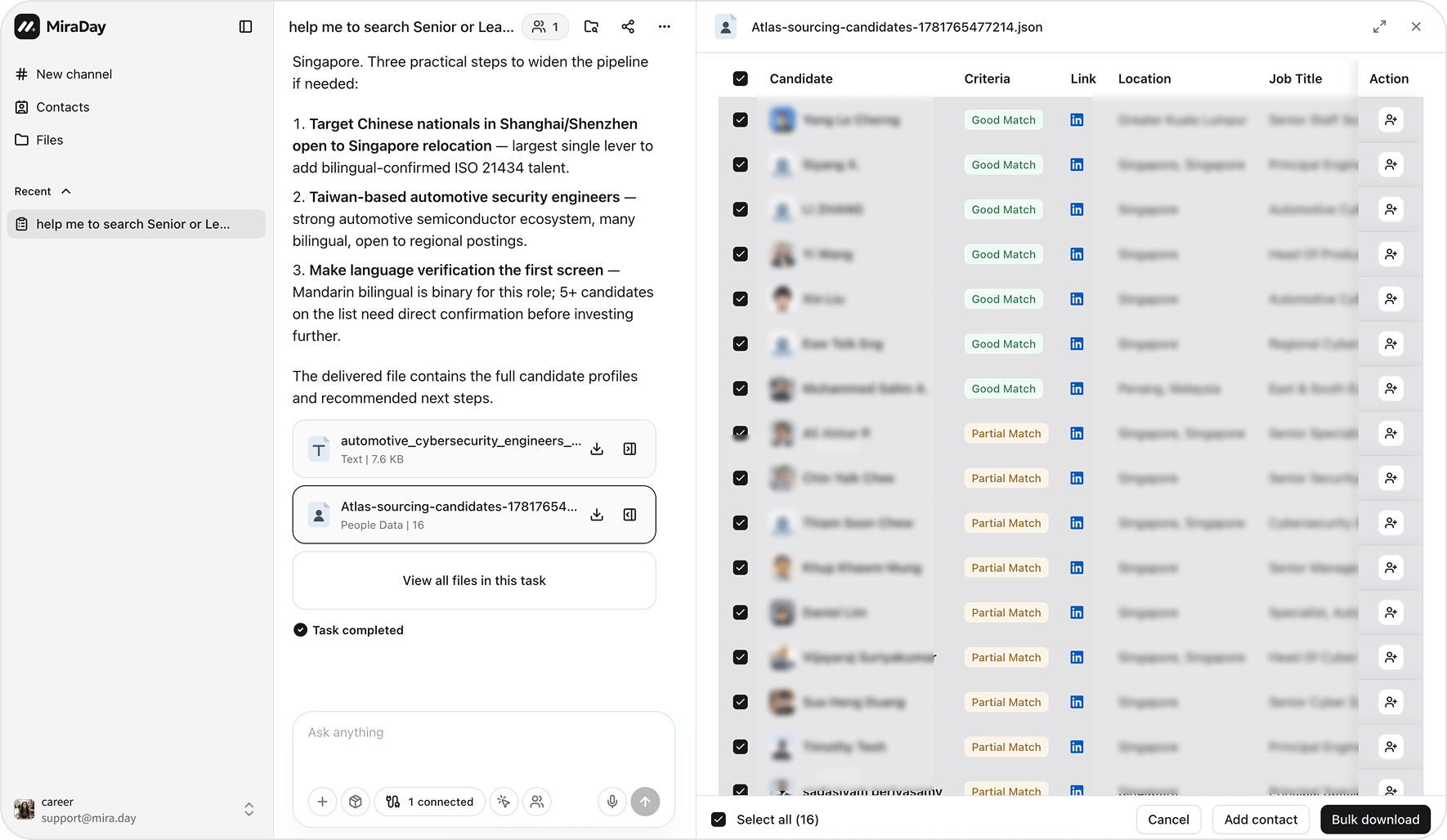
- Export the full pool: click the download icon on the data file card (it shows Download on hover), or open the file and click Download profiles at the top of the panel.
- Export only some candidates: select the candidates you want with their checkboxes, then click Bulk download. Switch to List view first if you want to scan the pool while you pick.
What the file includes
The file always has these columns: Name, Location, Current Company, Current Position, Years of Exp, Recent Work History, Education, Qualifications (the fit label), Email, and Phone. Link columns, LinkedIn, GitHub, Twitter, Hugging Face, and Other Link, appear only when at least one candidate in the file has that link. In the Email and Phone columns, a candidate’s multiple emails or phone numbers share one cell. Details that are neither already available nor retrieved show Not retrieved.Share with your team
Once you have the file, share it however your team works:- Import to your ATS: many ATS platforms accept Excel imports.
- Send to a hiring manager or client: share the file directly, or send the channel link. Opening the share panel creates the link, ready to copy. The recipient signs in to MiraDay to see the conversation, the candidate cards, and the task summary; before signing in, they see only your name and the channel name.
- Track in a spreadsheet: drop the file into your own sheet.
- Save to Contacts: click Add to contacts on the candidates you want to keep, or select several and use the same button in the bottom bar. They’re added to Contacts for enrichment and stay in your candidate pool.
What’s next
- Refining Your Search: refine the pool by talking to Mira or editing the Ideal Candidate Profile.
- Contacts: keep the people you save in one place.